Skip to content

Entities

Entities is the people registry for the active index. Each record combines a name, optional tags, and reference photos so Composer can look for the same person in indexed footage.

The example below uses two real frames of Celia from the public tears-of-steel-2012-cc-by-3.0 source. No customer image or mockup is used.

Add an entity

Confirm the active index, open Entities, and select Add entity.

Add entity form prepared for the public Celia example

NumberWhat to provide
1A clear display name. Use the name editors will recognize in Search and MBM.
2Optional comma-separated tags such as programme, role, or source.
3Reference photos. The form accepts JPG, PNG, HEIC, and WebP, with up to 10 images.
4Turn on Retro-resolve existing footage when the person should be matched against videos already indexed in the active index.
5Select Add entity once the name and at least one reference photo are present.

The form screenshot shows the public-demo name and tags before file selection. The detail and gallery screenshots below show the record after two real source frames were added.

Reference-photo checklist

  • Use one person per image, with the face large enough to inspect.
  • Prefer two to five sharp images with slightly different angles or expressions.
  • Avoid group photos, duplicates, masks, heavy occlusion, extreme filters, and tiny faces.
  • Use images you are allowed to process. Frames from the approved source are suitable when they clearly show the person.
  • Match the person’s appearance in the target footage as closely as possible.

Click a reference photo to inspect it at full size. Use the arrows or thumbnail strip to compare the set before relying on it for matching.

Reference-photo lightbox for the public Celia example

NumberWhat to check
1The face is sharp, unobstructed, and belongs to the intended person.
2Move through every uploaded photo instead of checking only the first image.
3Compare the thumbnail set for duplicates, poor crops, or inconsistent identities.

Understand Processing and Ready

After creation, the entity enters Processing while Composer prepares the reference photos. This is expected and can take time. Do not create a duplicate record just because the entity is not ready immediately.

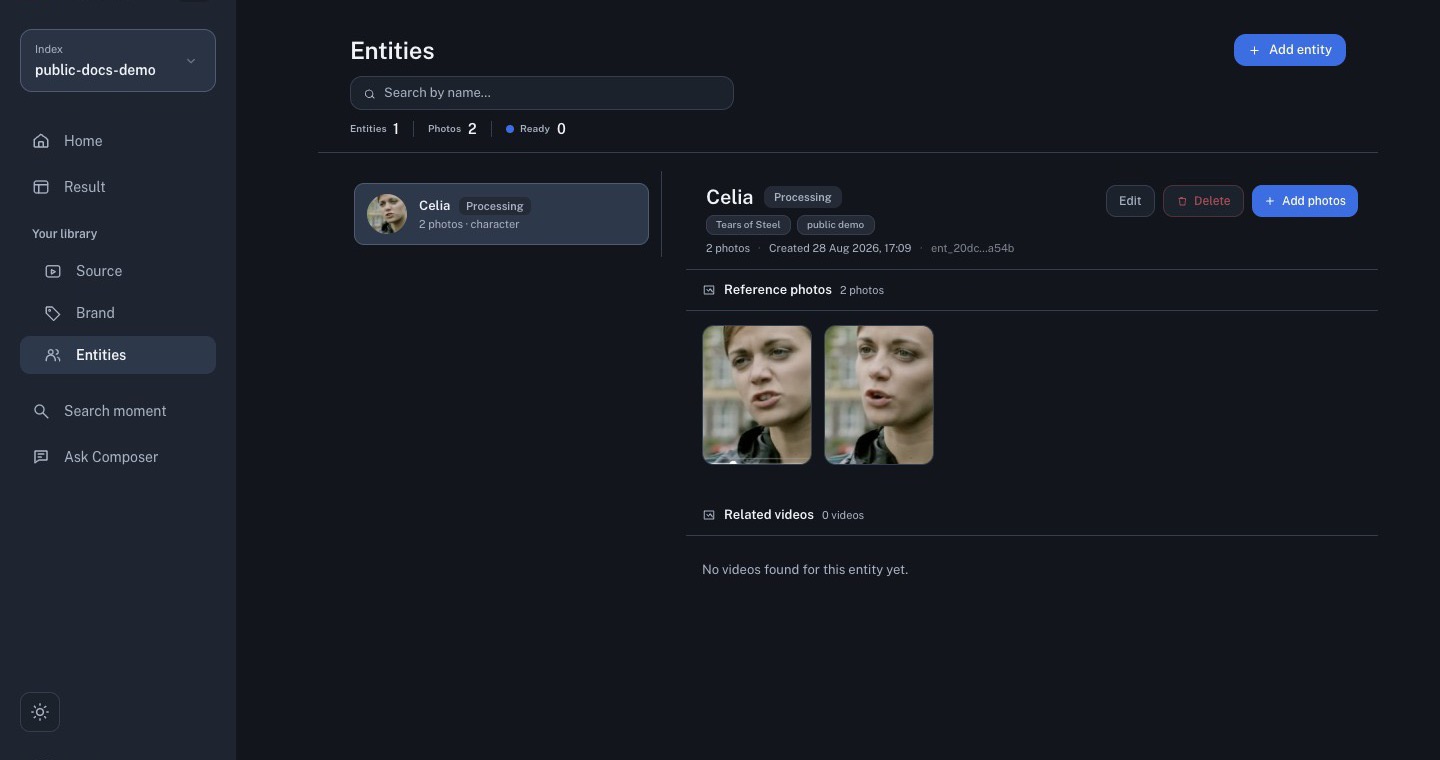
Celia entity detail while its public-source photos are processing

NumberWhat it shows
1Registry totals for entities, uploaded photos, and Ready records.
2The index-scoped entity list and the selected record.
3Current status. Use the entity in Search only after it becomes Ready.
4Tags and basic record metadata.
5Reference-photo gallery. Use Add photo to improve coverage, up to the 10-photo limit.
6Related videos, which previews matched clips from the active index after matching is available.

Refresh the page later to check the status. A Processing entity may not appear in the Search entity picker yet.

Match videos already in the index

Retro-resolve existing footage starts a background re-match for the current index. Use it when the source was indexed before the entity was created.

The Related videos panel can remain empty while the entity or retro-resolve job is still running. When matching finishes, review the preview clips and use View all to continue with the full Search page.

If no related video appears after the entity is Ready:

  1. confirm the source belongs to the active index;
  2. confirm retro-resolve was enabled for existing footage;
  3. add a clearer reference photo if the face is small or obscured;
  4. allow the background job to finish before retrying;
  5. ask the workspace administrator to check the matching job if it remains empty.
  1. Open Search and select the smallest relevant source set.
  2. Select Entity, or type @ in the query field.
  3. Choose a Ready entity from the suggestion list.
  4. Run the search and preview every returned clip.
  5. Confirm the face, source title, time range, and surrounding context before saving the result to a Working Set.

Entity matching is a discovery aid, not proof of identity. Similar faces, profile views, motion blur, costumes, and lighting changes can produce missed or incorrect matches.

Maintain a record

  • Use Edit to correct the name or tags.
  • Use Add photos when better reference angles become available.
  • Keep one record per person; improve the existing record instead of creating duplicates.
  • Delete only when the record is genuinely unwanted, because removal affects future entity-assisted workflows.