Getting started
Composer is a workspace product. Your organization or workspace administrator provides the login URL and account access.
Sign in
Open the Composer URL provided by your workspace administrator. If you are not signed in, Composer sends you to the login page.
Use the sign-in method enabled for your workspace:
- Enter your email and password, then select
Sign in. - Follow your organization’s single sign-on flow if one is configured.
- Use
Forgot your password?when password recovery is enabled for your account.
If sign-in or verification fails, ask a workspace administrator to confirm that your account is active and assigned to the correct workspace.
Choose the right workspace or index
The active index is the video collection Composer searches. Confirm the workspace name and index shown in the sidebar before starting a search, upload, or production task.

On a first visit, Composer may select a default index for you. If you already selected another index, Composer should preserve that selection. Use the index name at the top of the sidebar and the page title to confirm the active context.

Start in Sources when you need to check source readiness, or Dashboard when your role includes workspace health and processing metrics.
Learn the app pages
Use the left navigation in this order for a normal source-to-output workflow:
| Step | Page | What you do |
|---|---|---|
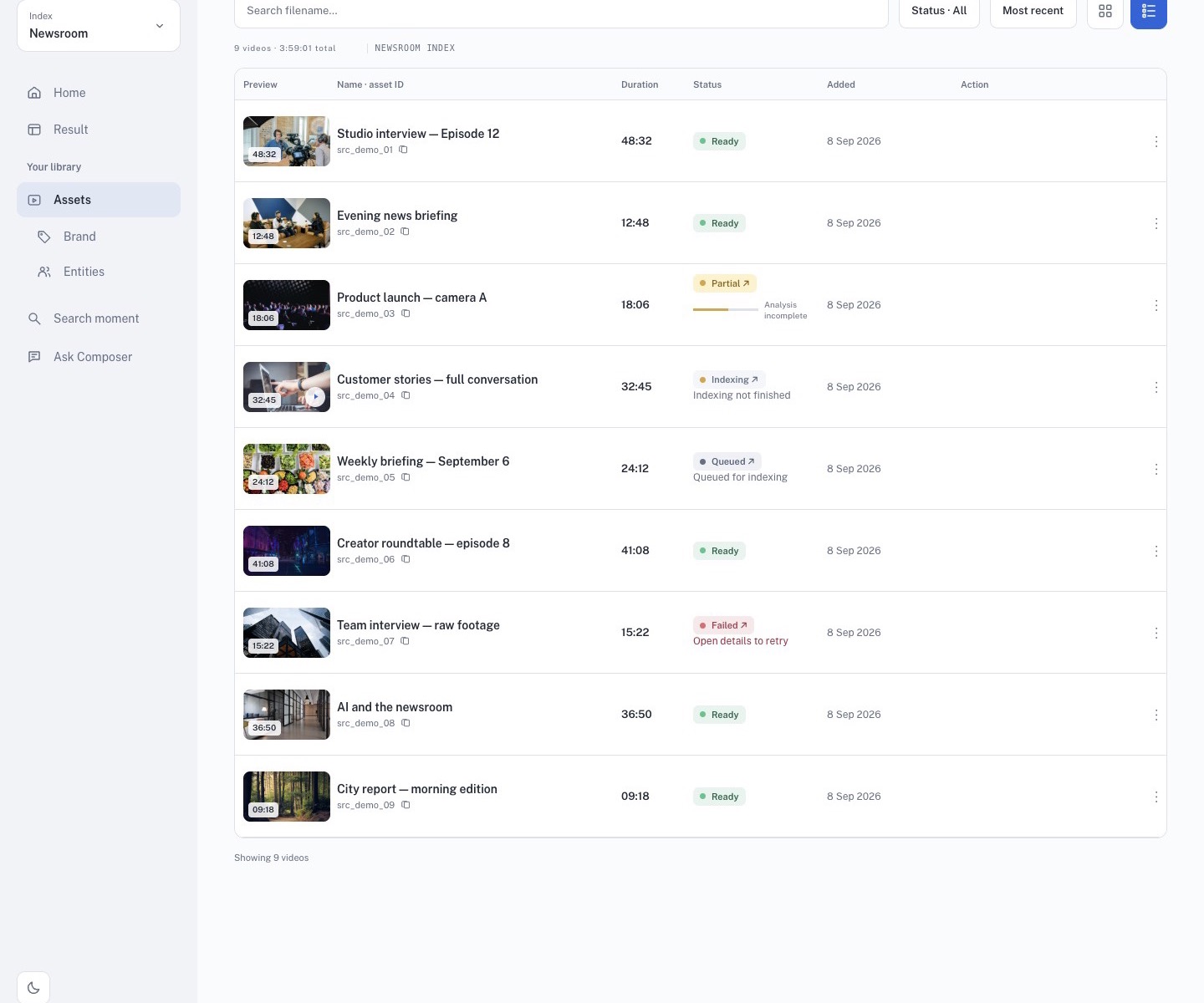
| 1 | Sources | Upload or check videos. Use only sources that have finished processing. |
| 2 | Search | Select sources and search for usable moments. |
| 3 | Ask | Ask source-grounded questions and review citations when you need research. |
| 4 | Working Sets | Save the moments that belong in one story. |
| 5 | Reframe | Generate short candidates from one long source with Pipeline or Agentic mode. |
| 6 | Produces | Follow generation and find projects that are ready to open. |
| 7 | Studio | Review the timeline, captions, visual treatment, and export state. |
Try a first workflow
Start with Best practices and the screenshot-backed Search to Studio workflow.
- Select a ready source in Search.
- Save verified results to a Working Set.
- Open
Produce, write the brief, choose the output shape and duration, and generate the first cut. - Wait for
Open in studio, then review the complete project before export.
Prepare before a session
Bring the same information an editor would use to brief a human assistant:
| Item | Example |
|---|---|
| Ready source list | Source videos confirmed READY before Search starts. |
| Target platform | YouTube, TikTok, social media, or internal review. |
| Story angle | The specific point the output should communicate. |
| Opening moment | A first shot, quote, person, event, or action to look for. |
| Search keywords | People, places, phrases, objects, actions, and scene words. |
| Must-include details | Facts, people, scenes, products, or quotes that must appear. |
| Must-avoid details | Unrelated sources, duplicate clips, or private footage. |
| Output length | 30 seconds, 45 seconds, or 60 seconds. |
| Brand treatment | Approved logo position, intro, outro, and caption style. |
| Final file need | MP4 for review or a publish-ready handoff. |