Skip to content

Create a people-focused video with Entity Search

Use Entity Search when the story centers on a known person, presenter, speaker, or character. The workflow narrows discovery to one registered entity, but an editor must still verify every match before using it.

This example uses Celia and the public tears-of-steel-2012-cc-by-3.0 source. The screenshots contain no customer footage or mock data.

StageContinue when
PrepareThe source is indexed and the entity has clear reference photos.
Ready gateThe entity status is Ready and it appears in Search.
VerifyEvery selected result shows the intended person and useful context.
CurateThe Working Set contains only distinct, story-relevant moments.
FinishThe Studio timeline, captions, framing, audio, and rendered MP4 are checked.

1. Prepare and check the entity

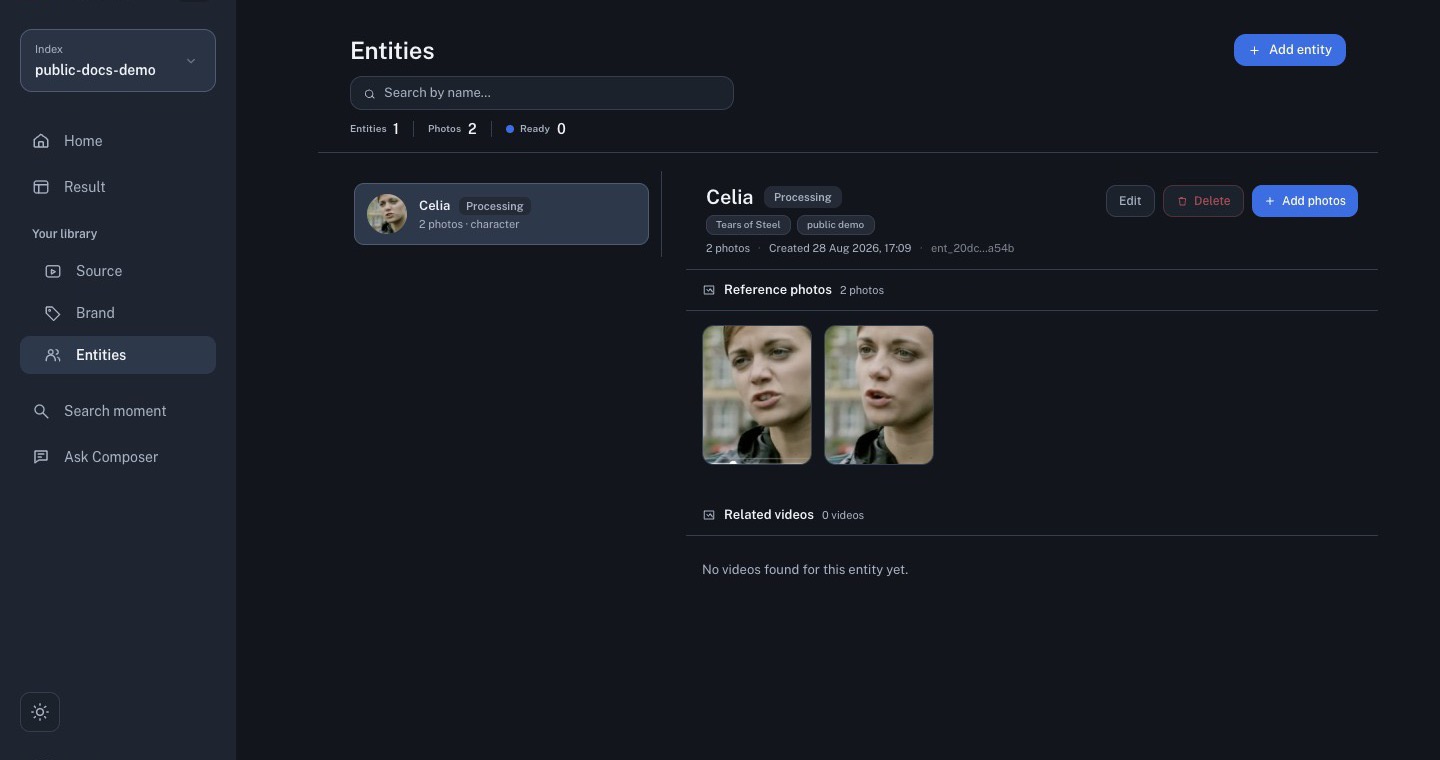
Open Entities in the same index as the target source. Confirm that the name, tags, and reference photos all describe one person. Use two to five clear angles when possible, then enable Retro-resolve existing footage if the video was indexed before the entity was created.

Celia entity with two real public-source reference photos

The public example above is still Processing. This is an honest readiness checkpoint, not a completed search state. Do not create a duplicate record while processing is in progress.

StatusWhat it meansNext action
ProcessingComposer is preparing the references; the entity may be absent from Search.Wait, then refresh the Entities page.
ReadyThe record can be selected in Entity Search.Continue to Search and verify the returned clips.

For photo selection and record maintenance, see Entities.

2. Recognize the Search readiness gate

Select the smallest useful source set, then choose Entity or type @ in the query field. If the record is still processing, Search can show no entity even though the record exists on the Entities page.

Entity Search while the public Celia record is still processing

NumberWhat to check
1The intended Ready source is selected.
2Entity mode is active and @ appears in the query field.
3No entities found means there is no Ready entity available to this picker yet.
4Use Create New Entity only for a genuinely new person, not as a retry for a Processing record.

If the entity is Ready but still missing, confirm the active index and reload Search before asking an administrator to inspect the matching job.

3. Search for verified moments

Once the record is Ready:

  1. Open Search and select only the sources relevant to the story.
  2. Select Entity, then choose the Ready person from the suggestion list.
  3. Run the search and preview every returned clip in context.
  4. Confirm the face, source title, time range, and transcript before saving it.
  5. Reject false positives, obstructed faces, and duplicate moments.

Entity matching is a discovery aid, not proof of identity. Profile views, motion blur, similar faces, lighting changes, and costumes can create incorrect or missed matches.

4. Curate a focused Working Set

Create a Working Set with a descriptive name, add only verified results, and arrange the clips in the order an editor should review them. Three to eight distinct moments are a practical starting point for a short first cut.

Public-source clips arranged in a Working Set

Before producing, confirm that the set has no false matches or near-duplicates, every clip adds new information, and the total duration supports the intended output length.

5. Brief and generate the first cut

Open Produce from the Working Set. Write a brief that names the subject, audience, story angle, opening beat, target duration, and must-include moments. Choose the output shape, brand template, and duration before generating.

Four-step Produce brief using public-source clips

Example brief:

Create a concise character-focused cut. Open with the clearest close-up, establish the situation quickly, keep only moments that advance the story, and avoid repeated reactions or clips where the subject is not visible.

6. Review and export in Studio

Open the generated option in Studio and review the complete timeline—not only the opening and closing clips.

Studio review of a public Tears of Steel project

  1. Verify the script and every body clip against the source context.
  2. Remove false matches and use Add section from transcript when a better source moment is needed.
  3. Check captions, crop, aspect ratio, brand elements, and audio continuity.
  4. Save changes, render the project, and download the MP4.
  5. Play the downloaded file outside Composer before delivery.

For each Studio control and its numbered screenshot, see Studio: review, edit, and export.

Completion criteria

The workflow is complete when every included appearance is manually verified, the Working Set has a clear editorial purpose, the generated cut follows the brief, and the downloaded MP4 passes picture, caption, audio, and framing checks.